Designing a Local Area Network (LAN) is one of the fundamental skills every IT professional should understand. Whether you’re setting up a home lab, a small business network, or planning infrastructure for an office, a well-designed LAN improves performance, security, reliability, and future scalability.
Good network design is not simply connecting devices together. It involves planning IP addressing, network segmentation, hardware selection, security, documentation, and room for future growth.
In this guide, we’ll walk through the key steps involved in designing a small LAN network and discuss the best practices used by IT professionals.
1. Define Your Requirements
Before selecting equipment or configuring devices, determine what the network needs to support.
Consider:
- How many devices will connect to the network?
- Will there be servers or network storage?
- Do you need wireless connectivity?
- Will guests require internet access?
- Are there any security requirements?
- How much growth is expected in the next few years?
For example, a network supporting 20 devices today may need to support 50 devices within two years. Planning for growth now can prevent expensive redesigns later.
It is also worth considering the types of traffic your network will carry. File sharing, cloud applications, video conferencing, security cameras and backups all place different demands on network infrastructure.
2. Choose a Network Topology
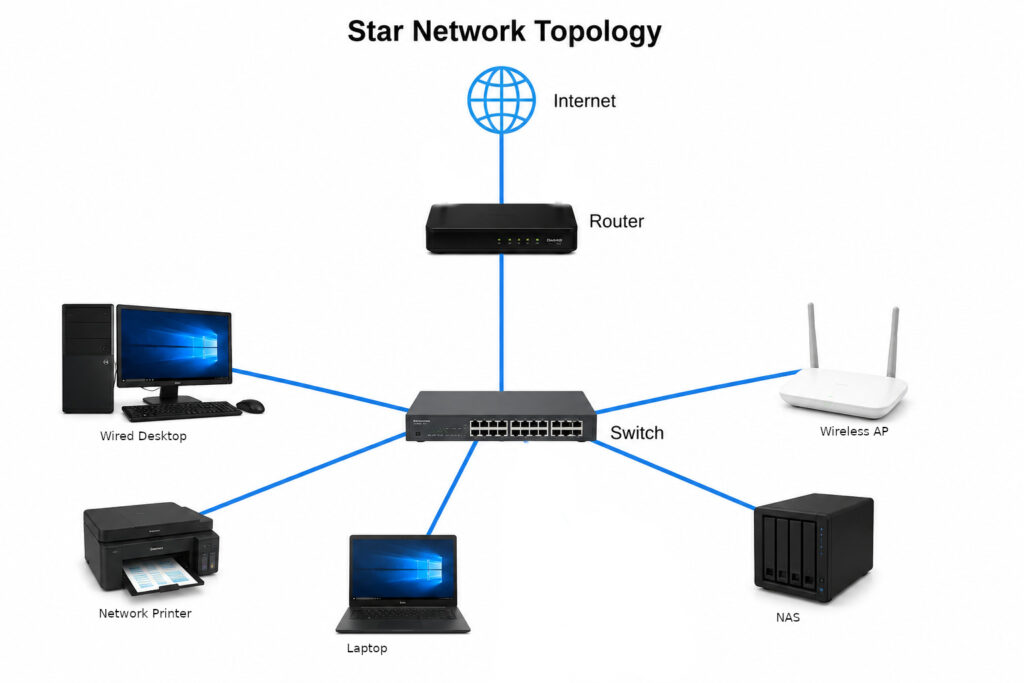
For most homes and small businesses, a star topology is the most common and preferred design.
In a star topology:
- All devices connect to a central switch.
- The switch connects to the router.
- The router provides internet access.
Benefits include:
- Easy troubleshooting
- Better performance
- Improved reliability
- Easier expansion
A typical layout might look like this:
Internet → Router → Switch → PCs, Printers, Access Points, Servers
Core, Distribution and Access Layers
Larger more complex networks are often designed using layers.
Core Layer
The high-speed backbone of the network that connects major network devices and carries large amounts of traffic.
Distribution Layer
Provides routing, policy enforcement and traffic control between different parts of the network.
Access Layer
Connects end-user devices such as computers, printers and wireless access points.
Small businesses often combine these layers into a single switch, but understanding the concept helps when working with larger enterprise environments.
Redundancy Considerations
Critical networks should avoid single points of failure.
Examples include:
- Dual internet connections (5G Cellular Backup)
- Redundant switches and uplinks
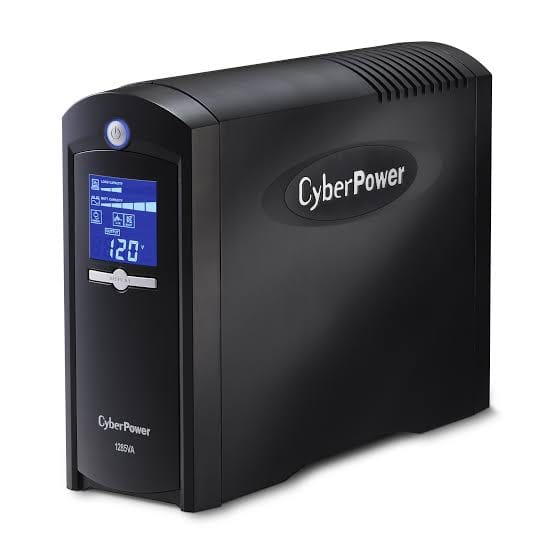
- Backup power supplies (UPS)
- Multiple wireless access points
While redundancy may not be necessary for every small network, it becomes increasingly important as downtime becomes more costly and more services are pushed onto the network such as cctv and VoIP.
3. Choose an IP Address Range
Private IPv4 networks use address ranges reserved by RFC 1918.
The three private ranges are:
- 10.0.0.0/8
- 172.16.0.0/12
- 192.168.0.0/16
For most small networks, the 192.168.x.x range is easy to manage and commonly used.
Example:
Network: 192.168.1.0/24
Gateway: 192.168.1.1
Choose a range that is simple to remember and unlikely to conflict with other networks you may connect to in the future.
Many organisations use 10.x.x.x addressing because it provides a large amount of flexibility for future growth and VLAN segmentation.
4. Plan Subnets and Network Size
Subnetting determines how many devices your network can support.
A common subnet for small networks is:
192.168.1.0/24
Subnet Mask: 255.255.255.0
This provides:
- 256 total addresses
- 254 usable host addresses
The first address identifies the network and the last address is reserved for broadcasts.
Examples:
| Subnet | Usable Hosts |
| /24 | 254 |
| /25 | 126 |
| /26 | 62 |
| /27 | 30 |
When planning subnets, allow extra capacity for future devices.
For example, if you currently have 40 devices, a /26 subnet may work today, but a /24 subnet may provide more room for growth.
Good network design considers future expansion rather than only current requirements.
5. Create an IP Addressing Plan
One of the most important yet often overlooked parts of network design is creating an IP addressing plan.
Reserve specific address ranges for different device types.
Example:
| Device Type | Address Range |
| Router & Infrastructure | 192.168.1.1 – 192.168.1.20 |
| Servers | 192.168.1.21 – 192.168.1.49 |
| Printers | 192.168.1.50 – 192.168.1.69 |
| Access Points | 192.168.1.70 – 192.168.1.89 |
| DHCP Clients | 192.168.1.100 – 192.168.1.200 |
You can also document individual devices:
| Device | IP Address |
| Router | 192.168.1.1 |
| Core Switch | 192.168.1.2 |
| Wireless Access Point | 192.168.1.3 |
| File Server | 192.168.1.10 |
| Printer | 192.168.1.20 |
Having a documented plan makes troubleshooting significantly easier.
It also helps future administrators quickly understand how the network has been structured.
6. Configure DHCP
Dynamic Host Configuration Protocol (DHCP) automatically assigns IP addresses to devices.
Without DHCP, every device would need to be configured manually.
A typical DHCP pool might be:
192.168.1.100 – 192.168.1.200
This leaves lower addresses available for devices using static IP addresses.
Best practices include:
- Keep infrastructure devices on static IPs
- Reserve IP addresses for important systems
- Use shorter lease times for guest networks
- Use longer lease times for stable office environments
DHCP simplifies network administration and reduces configuration errors.
Most routers and firewalls include a built-in DHCP server suitable for small and medium-sized networks.
7. Configure DNS
DNS (Domain Name System) translates names into IP addresses.
For example, users type:
google.com
Instead of remembering a numerical IP address.
Without DNS, users would need to manually enter IP addresses for websites and services.
Common DNS options include:
- Router DNS forwarding
- Internal DNS servers
- Public DNS services
Popular public DNS servers include:
- Google DNS: 8.8.8.8 and 8.8.4.4
- Cloudflare DNS: 1.1.1.1 and 1.0.0.1
DNS planning is an important part of any network design.
In business environments, DNS is often integrated with directory services and internal applications as part of a dedicated DNS server role instead of a public dns server set on the router.
8. Ethernet Speeds and Cabling
Choosing the correct cabling and switch speeds is an important part of network design.
Common Ethernet speeds include:
| Speed | Standard |
| 100 Mbps | Fast Ethernet |
| 1 Gbps | Gigabit Ethernet |
| 2.5 Gbps | Multi-Gig Ethernet |
| 5 Gbps | Multi-Gig Ethernet |
| 10 Gbps | 10 Gigabit Ethernet |
Today, Gigabit Ethernet should be considered the minimum standard for new installations.
For environments with large file transfers, network storage or virtualisation, faster networking may be beneficial.
Choosing Network Cabling
Common cable categories include:
| Cable Type | Typical Maximum Speed |
| Cat5e | 1 Gbps (often 2.5 Gbps at short distances) |
| Cat6 | 1 Gbps to 10 Gbps |
| Cat6a | 10 Gbps |
| Cat7/Cat8 | Specialist applications |
For most homes and small businesses:
- Cat5e remains adequate if it is already in place
- Cat6 is often the preferred choice for new installations
- Cat6a is recommended if 10 Gbps networking may be required in the future
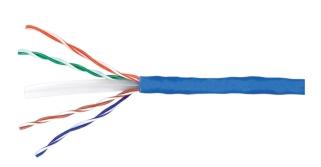
Installing better cabling during construction or renovation is often much cheaper than replacing it later.
Power over Ethernet (PoE)
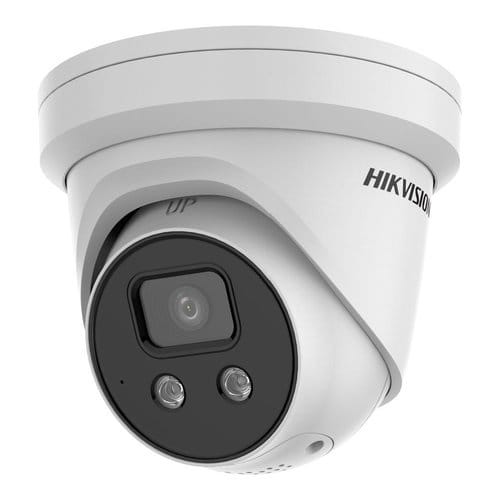
Many modern devices can receive both power and network connectivity through a single Ethernet cable.
Examples include:
- Wireless access points
- IP phones
- Security cameras
- Building access systems
PoE reduces cable clutter and simplifies installations. If you require PoE, this functionality will influence what you Switch you buy.
9. Wireless Network Design
Wi-Fi has become an essential component of most LANs.
While wired connections generally provide better reliability and performance, wireless networking offers flexibility and convenience.
Access Point Placement
Poor access point placement is one of the most common causes of Wi-Fi issues.
Best practices include:
- Position access points centrally
- Avoid placing them inside cupboards or cabinets
- Minimise walls and obstacles
- Avoid interference from other electronics
- Use multiple access points rather than increasing transmit power
Coverage should be planned rather than guessed.
Understanding Wi-Fi Bands
Modern Wi-Fi typically operates on multiple frequency bands:
2.4 GHz
- Longer range
- Better wall penetration
- Better compatibility with older and some IoT devices
- Lower speeds
- More interference
5 GHz
- Higher speeds
- Less interference
- Shorter range
6 GHz (Wi-Fi 6E and Wi-Fi 7)
- Very high performance
- Lower congestion
- Reduced range compared to 2.4 GHz
- Limited but growing compatibility
Modern networks typically use a combination of these bands depending on device capabilities and coverage requirements.
Separate Wireless Networks
Many organisations deploy separate wireless networks for different purposes.
Examples include:
- Corporate Wi-Fi
- Guest Wi-Fi
- IoT devices
These wireless networks are often connected to separate VLANs to improve security and management.
For example:
- Corporate Wi-Fi → VLAN 10
- Guest Wi-Fi → VLAN 20
- IoT Wi-Fi → VLAN 30
This prevents guests and smart devices from accessing sensitive internal systems.
Mesh Networks
Mesh Wi-Fi systems have become increasingly popular in homes and small offices because they can extend wireless coverage without requiring network cables to every access point. While mesh networks can be effective in some environments, they often rely on wireless backhaul connections between nodes, which can reduce performance and introduce additional latency.
For the best reliability, consistency and performance, dedicated wired access points connected back to a central switch are generally preferred. A properly designed wired wireless network typically provides faster speeds, more predictable coverage and fewer troubleshooting challenges than a wireless mesh deployment.
10. Implement VLANs
Virtual LANs (VLANs) allow a physical network to be divided into multiple logical networks.
Benefits include:
- Improved security
- Reduced broadcast traffic
- Better performance
- Easier management
Without VLANs, every device shares the same network segment.
With VLANs, different types of devices can be isolated from one another.
Example:
| VLAN | Servers | Subnet |
| 10 | Staff | 192.168.10.0/24 |
| 20 | Guest Wi-Fi | 192.168.20.0/24 |
| 30 | IoT Devices | 192.168.30.0/24 |
| 40 | Servers | 192.168.40.0/24 |
This creates separate broadcast domains and improves security.
Access Ports and Trunk Ports
Switch ports are generally configured as either access ports or trunk ports.
Access Ports
- Carry traffic for a single VLAN
- Used for PCs, printers and servers
Trunk Ports
- Carry traffic for multiple VLANs
- Used between switches, routers and access points
- Use IEEE 802.1Q tagging
Understanding the difference between access and trunk ports is essential when deploying VLANs.
Inter-VLAN Routing
Devices on different VLANs cannot communicate by default.
For example:
- VLAN 10: 192.168.10.50
- VLAN 20: 192.168.20.75
These devices require routing to communicate.
Routing is typically provided by:
- A router
- A firewall
- A Layer 3 switch
Access control policies can then determine what communication is allowed between VLANs.
Typical Small Business VLAN Design
| VLAN | Purpose |
| 10 | Management |
| 20 | Staff |
| 30 | Servers |
| 40 | VoIP Phones |
| 50 | Security Cameras |
| 60 | Guest Wi-Fi |
| 70 | IoT Devices |
This structure improves organisation, security and scalability.
11. Selecting Network Hardware
When choosing network hardware, focus on reliability and future growth rather than simply selecting the cheapest option.
Router
The router provides:
- Internet connectivity
- Firewall services
- DHCP
- Routing between VLANs
For business environments, routers with advanced security and monitoring capabilities are often preferred.
Switches
Managed switches are strongly recommended because they support:
- VLANs
- Monitoring
- Port security
- Quality of Service (QoS)
Unmanaged switches are suitable only for the simplest networks.
Wireless Access Points
Dedicated access points generally provide better performance and coverage than the Wi-Fi built into consumer routers.

For growing networks, multiple centrally managed access points are often the preferred solution.
UPS Protection
A UPS (Uninterruptible Power Supply) can keep critical network equipment operating during short power outages and provide protection against power fluctuations.
Even a small UPS can help maintain internet connectivity during brief power interruptions.
12. Document the Network
Documentation saves time when troubleshooting and upgrading your network.
Document:
- IP addressing plans
- VLAN assignments
- Switch port assignments
- Device inventory
- Password storage procedures
- Physical cable layouts
A simple network diagram can be invaluable when diagnosing issues months or years later.
Good documentation is one of the hallmarks of a well-managed network.
13. Security Best Practices
Security should be considered from the beginning, not added later.
Recommended practices include:
- Change default usernames and passwords
- Use strong administrator passwords
- Keep firmware updated
- Disable unused services
- Restrict administrative access
- Use a firewall
- Separate guest traffic using VLANs
- Regularly review logs and alerts
Even small networks benefit from basic security measures.
A secure network is typically easier to maintain and less likely to suffer service disruptions.
Common Mistakes When Designing a LAN
Many networking issues can be avoided by steering clear of common mistakes.
Using Default Configurations
Default passwords and settings create unnecessary security risks.
No Documentation
A network without documentation becomes difficult to troubleshoot and maintain.
Running Out of IP Addresses
Networks often grow faster than expected. Always leave room for expansion.
Putting Everything on One Network
Servers, guest devices and IoT devices should not all share the same network segment.
No Backup of Configurations
Back up router, firewall and switch configurations regularly.
Poor Cable Management
Messy cabling increases troubleshooting time and can lead to accidental disconnections.
Using Weak Passwords
Simple passwords remain one of the most common causes of network compromise.
Daisy-Chaining Too Many Switches
Excessive switch chaining can create performance bottlenecks and management headaches.
Ignoring Wireless Coverage
Many organisations invest heavily in networking equipment but spend little time planning wireless coverage. Poor Wi-Fi design often results in user complaints and performance issues.
Buying Hardware With No Growth Capacity
Purchasing a switch with exactly enough ports for today’s devices often leads to replacement costs in the future. Leave room for expansion whenever possible.
Final Thoughts
Designing a LAN network is about more than simply connecting devices together. A well-designed network starts with careful planning, structured IP addressing, appropriate hardware selection, security considerations, documentation and room for future growth.
By following best practices and avoiding common mistakes, you can create a network that is reliable, secure and easy to manage. Whether you’re building a home lab, supporting a small business or beginning a career in IT, understanding LAN design fundamentals is an important step towards becoming a skilled networking professional.