Managing a large music library can be a daunting task, especially when dealing with corrupted or invalid MP3 files. These files may cause playback issues, crashes, or software errors. Manually identifying and removing them is time-consuming, but with a little automation, this process can be dramatically speed up.
This article explores how to use a Windows batch script that uses ffprobe to scan, check the integrity of mp3 files, and move bad MP3 files to a separate folder, ensuring a cleaner and more efficient music library.
The Problem: Corrupt MP3 Files
MP3 files can become corrupt due to incomplete downloads, file transfer errors, improper encoding and failing hardware.
Symptoms of corruption include:
- Tracks skipping or refusing to play
- Media players crashing when opening certain files
Detecting and fixing these files manually is impractical for large libraries. Automating the detection and removal process helps maintain a high-quality music collection.
How the Script Works
The provided Windows batch script automates the detection and removal of corrupt MP3 files by:
- Scanning a target directory (where it is launched from) and its subdirectories for MP3 files.
- Using
ffprobe(part of the FFmpeg suite) to analyze each file. - Moving corrupt mp3 music files to a designated “Bad MP3” folder.
- Logging of all processed files, including the number of valid and invalid MP3s.
@echo off
setlocal enabledelayedexpansion

:: Set the base directory where the script is executed ***CHANGE ME ***
set "mp3Directory=%CD%"
set "badDirectory=C:\Users\itcrashcourse\Desktop\BadMP3"

:: Set the path to ffprobe *** CHANGE ME ***
set "ffprobePath=C:\Users\itcrashcourse\Desktop\ffprobe.exe"

:: Ensure bad folder exists
if not exist "%badDirectory%" mkdir "%badDirectory%"

:: Generate a timestamped log file in the same directory as the script
set "logFile=%mp3Directory%\mp3_check_log_%date:~10,4%-%date:~4,2%-%date:~7,2%_%time:~0,2%-%time:~3,2%.txt"

:: Initialize counters
set "goodCount=0"
set "badCount=0"

:: Log start
echo MP3 File Check Log > "%logFile%"
echo =================================== >> "%logFile%"
echo Started: %date% %time% >> "%logFile%"
echo Scanning directory: %mp3Directory% >> "%logFile%"
echo ----------------------------------- >> "%logFile%"

:: Process all MP3 files in the directory and subdirectories
for /r "%mp3Directory%" %%f in (*.mp3) do (
    echo Checking: %%f

    :: Reset errorlevel to prevent false positives
    cmd /c exit 0

    :: Run ffprobe and capture output
    "%ffprobePath%" -v error -show_format -show_streams "%%f" >nul 2>&1

    if errorlevel 1 (
        echo [BAD] %%f >> "%logFile%"
        echo Moving to: %badDirectory%\%%~nxf >> "%logFile%"
        move "%%f" "%badDirectory%\"
        set /a badCount+=1
    ) else (
        echo [GOOD] %%f >> "%logFile%"
        set /a goodCount+=1
    )
)

:: Log summary
echo ----------------------------------- >> "%logFile%"
echo MP3 Check Complete! >> "%logFile%"
echo Good MP3s: %goodCount% >> "%logFile%"
echo Bad MP3s: %badCount% >> "%logFile%"
echo All bad MP3s moved to: %badDirectory% >> "%logFile%"
echo ----------------------------------- >> "%logFile%"

:: Show final summary on screen
echo -----------------------------------
echo MP3 Check Complete!
echo Good MP3s: %goodCount%
echo Bad MP3s: %badCount%
echo All bad MP3s moved to: %badDirectory%
echo Log saved to: %logFile%
echo -----------------------------------

pause
How to Use the Script
Prerequisites
- Download the
ffprobebinary file for Windows from ffbinaries.com
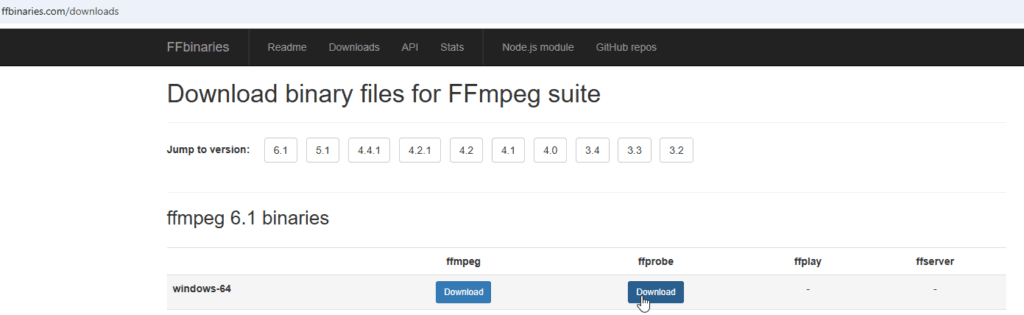
- Extract and note the path to
ffprobe.exe. - Copy the above script from this website and save it as a
.batfile (e.g.,check_mp3.bat). - Update the script paths
badDirectoryis the folder where corrupted files will be moved.ffprobePathis the location offfprobe.exe you just downloaded
- Place the script in the root of your music directory or specify the
mp3Directorypath manually.
Running the Script
- Place the script in the directory you want to scan, for the first time, it is recommend you try a lower directory with just a few files in it to confirm it works correctly.
An invalid version of ffprobe could move all your files otherwise! - Double click the:
check_mp3.bat. (or batch file name) you created - Monitor the script and badMP3 directory.
Once executed, the script will process all MP3s in the current directory and those directories within it, automatically move corrupted files, and generate a log file in the directory it was executed within with details.
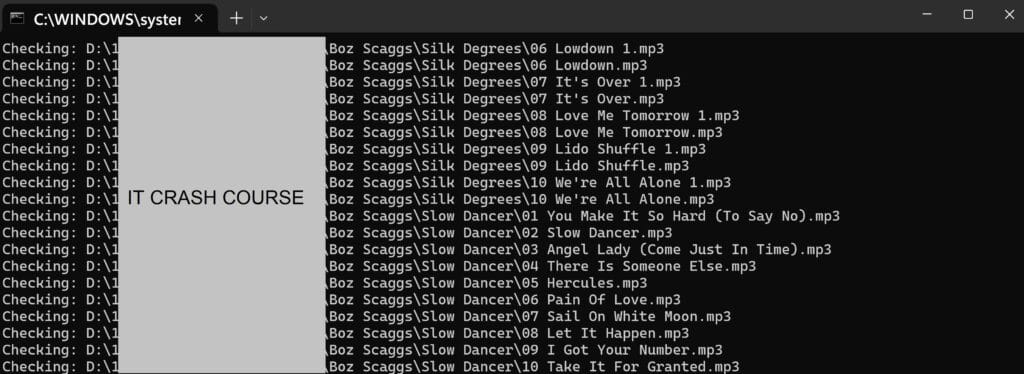
Review & Cleanup
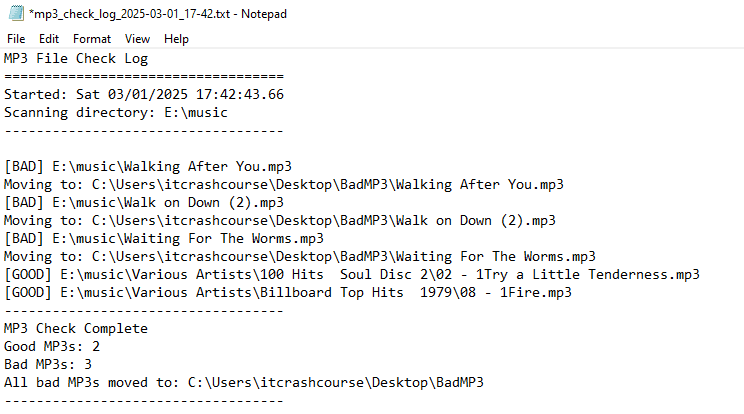
Once the script has completed, review the log file to confirm exactly what files were good and which ones were detected as bad and moved.
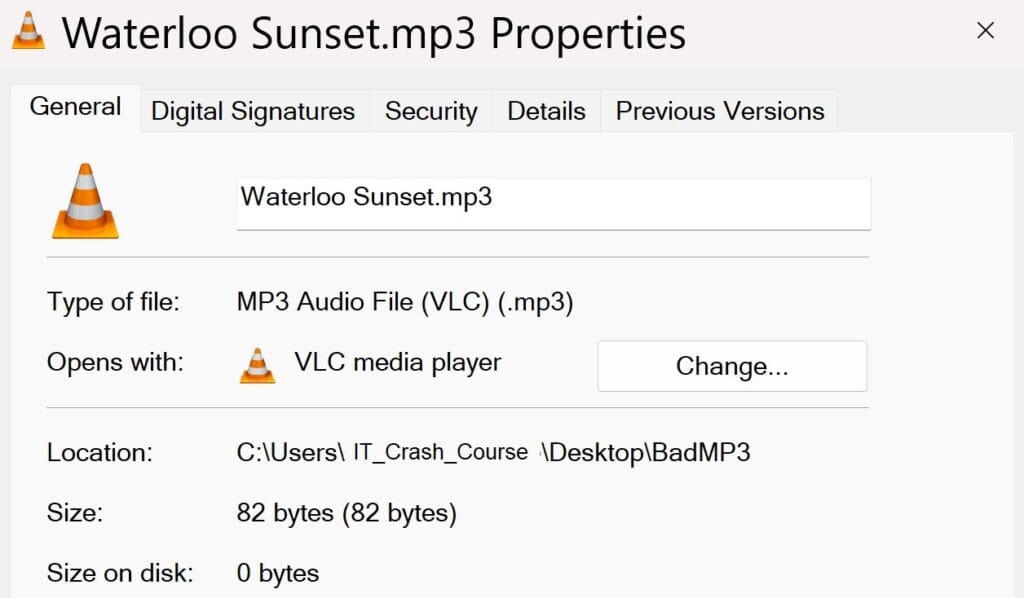
To confirm the files moved are indeed corrupt, open up the ‘BadMP3’ directory you chose and try to play the individual media files. In this case the ‘Waterloo Sunset’ mp3 was corrupt and only 82 bytes.
Do note VLC can be very resilient at playing corrupted or damaged files which other players may give up on.
Adapting the Script for Other File Types
The script can be modified to scan and remove corrupted files for various audio and video formats supported by ffprobe. This includes:
Supported Audio Formats:
- MP3 (
.mp3) - WAV (
.wav) - AAC (
.aac) - FLAC (
.flac) - OGG (
.ogg) - WMA (
.wma) - AIFF (
.aiff,.aif) - Opus (
.opus)
Supported Video Formats:
- MP4 (
.mp4) - MKV (
.mkv) - AVI (
.avi) - MOV (
.mov) - WMV (
.wmv) - FLV (
.flv) - WebM (
.webm)
Modifying the Script for Video Files
To check for corrupted MP4 and MKV files, update the file extension in the for loop:
for /r "%mp3Directory%" %%f in (*.mp4 *.mkv *.avi *.mov) do (This change allows the script to scan video files and remove any that are invalid.
Modifying the Script for Multiple Audio Formats
To check for MP3, WAV, and FLAC files, modify the loop as follows:
for /r "%mp3Directory%" %%f in (*.mp3 *.wav *.flac *.ogg *.aac) do (Conclusion
This batch script provides IT professionals with an effective way to maintain identify corrupt media files and remove them from large libraries.
Did this script work for you? Let us know in the comments below