Modern smartphones often save photos in the .HEIC format to reduce file size while maintaining image quality. However, .HEIC files have very limited compatibility with older devices, applications, or websites.
Converting these images to the widely-supported .JPG format ensures better compatibility and easier sharing. Here’s how to do it for free using a simple ImageMagick batch script.
Steps To Convert Images
1. Download & Install ImageMagick
Download and install ImageMagick from ImageMagick’s official website (Downloads). Install the latest version under ‘Windows Binary Release’ as per the screenshot.
ImageMagick is a powerful, open-source cross platform command line tool for creating, editing, and converting image files in a wide range of formats, including .HEIC and .JPG.
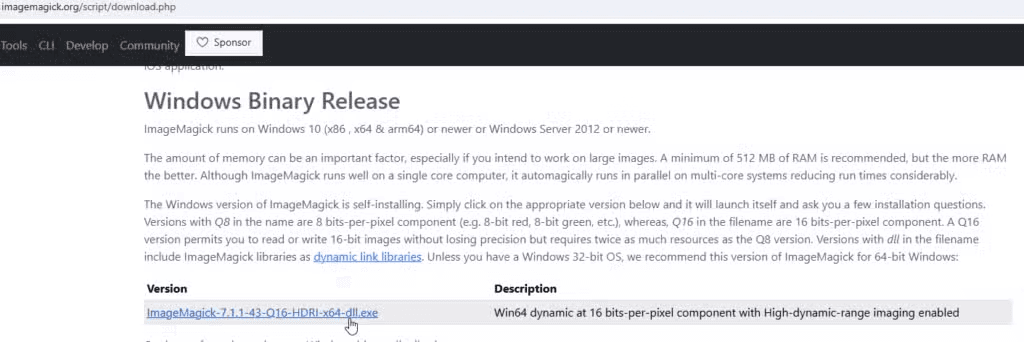
The default options can be used to install ImageMagick

2. Create & Prepare Your Script
Use the following batch script to automate converting every ‘.heic’ image in a particular directory to ‘.jpg’.
Copy the code into notepad and save it as a .bat file (e.g., convert_heic_to_jpg.bat).
Before saving, you will need to update the input_folder and create a seperate output_folder to save the converted images into.
@echo off
setlocal enabledelayedexpansion

REM Path to the folder containing .heic images
set "input_folder=C:\Path\To\Your\HEIC\Images"

REM Path to the output folder for .jpg images
set "output_folder=C:\Path\To\Your\JPG\Images"

REM Create the output folder if it doesn't exist
if not exist "!output_folder!" mkdir "!output_folder!"

REM Convert each .heic file to .jpg
for %%f in ("%input_folder%\*.heic") do (
    echo Converting "%%f" to JPG...
    magick "%%f" "!output_folder!\%%~nf.jpg"
)

echo Conversion complete!
pause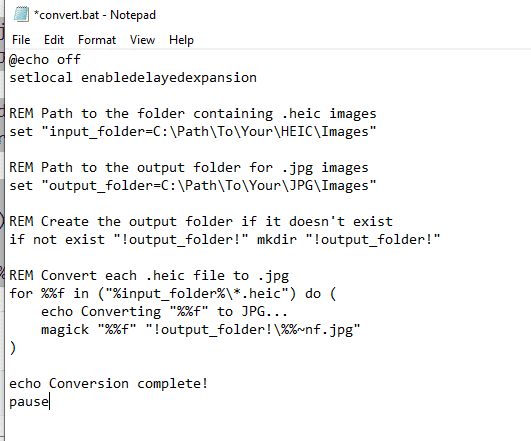

3. Run The Script
Double-click the .bat script you created. The batch script will process all .HEIC files in the specified folder and save the converted .JPG images to your chosen output folder.

Conclusion
ImageMagick is a very powerful tool and while maybe intimidating being command line, is incredibly useful for converting or making adjustments to files in bulk.
Tasks like bulk operations show how fast and useful batch scripts are, despite being regarded as ‘old-fashioned’ compared to fancier gui’s.
I hope this guide was useful for you. If it was please share or leave a comment.
Have a great day and the best of success with what you are doing.